Link a device to your organization
Once a device is linked to your organization, you can use cloud management, FlowMesh, Application Edge Acceleration (AEA) and configuration backup. Linking does not affect the device’s local features.
Before you start, sign in to the device as described in Sign in to the gateway admin console.
1. Start linking in the gateway admin console
In the left navigation, select 设置 → 系统 (Settings → System) and find 组织与授权 (Organization & license). If the device isn’t linked yet, it shows 尚未关联到账号 (Not linked to an account). Click 关联账号 (Link account) on the right.
Your browser is redirected to the 关联设备 (Link device) page in the Wanflow Console.
2. Confirm the link in the console
Check the model, MAC address, request time and software version shown on the page and make sure they match the device you have. Also confirm that 关联到 (Link to) shows the organization you want to use, then click 确认关联 (Confirm link).
If the details don’t match, click 不是这台,重新输入 (Not this device, re-enter).
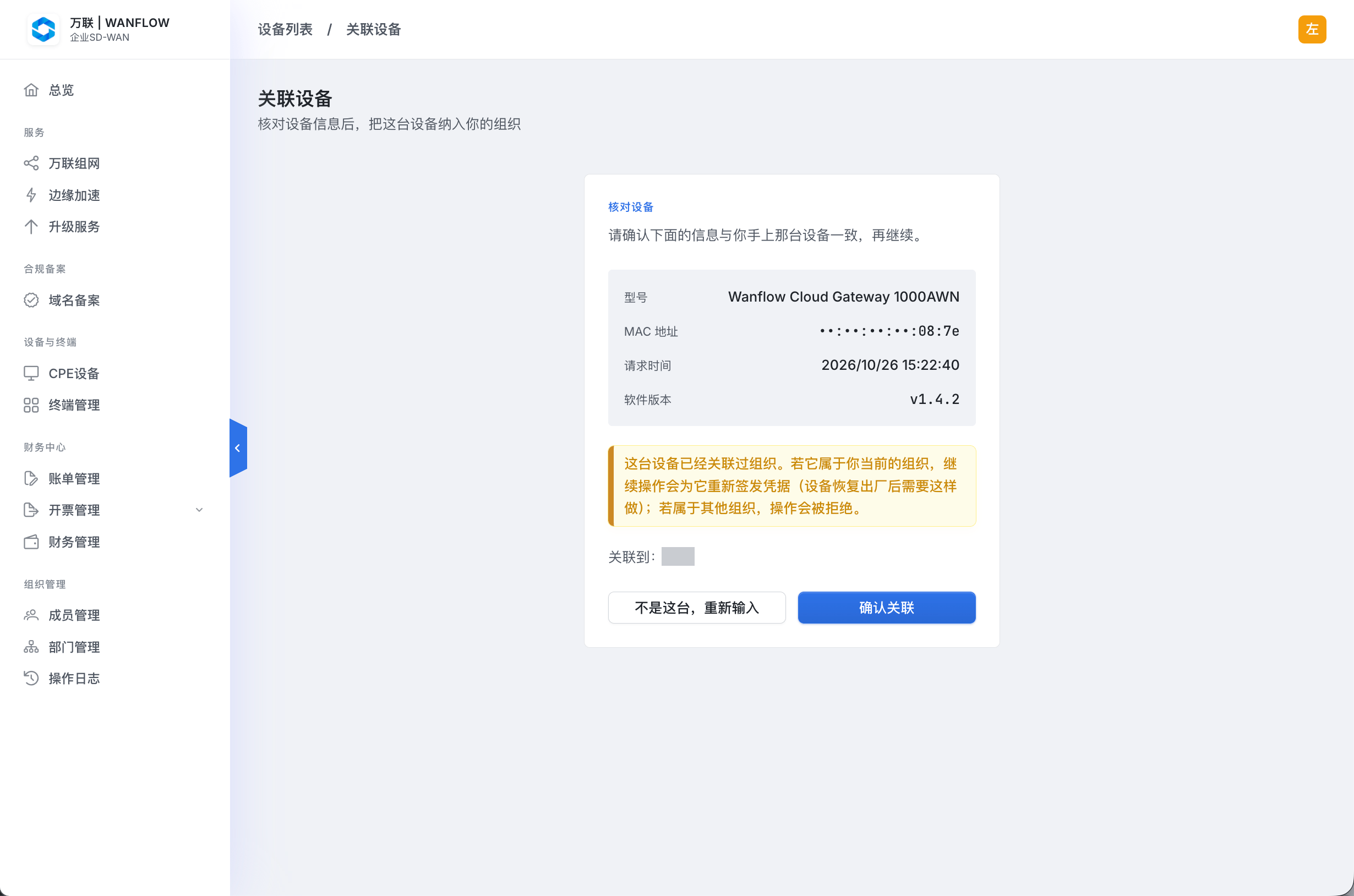
If the page says 这台设备已经关联过组织 (This device is already linked to an organization): if the device belongs to your current organization, continuing will issue new credentials for it, which is required after the device has been reset to factory settings. If the device belongs to another organization, the operation is rejected.
Once linking is complete, the device appears in the 设备与终端 → CPE设备 (Devices & Terminals → CPE devices) list in the console.