Firewall and policies
The device’s network-layer policies are all managed in Policy Table, including firewall (Firewall), address translation (NAT), routing (Route) and traffic control (QoS). To control internet usage by device or application, use Flow Rules.
Before you start, sign in to the device as described in Sign in to the gateway admin console.
1. View existing policies
In the left navigation, select 设置 → CONNECTIVITY → Policy Table (Settings → CONNECTIVITY → Policy Table).
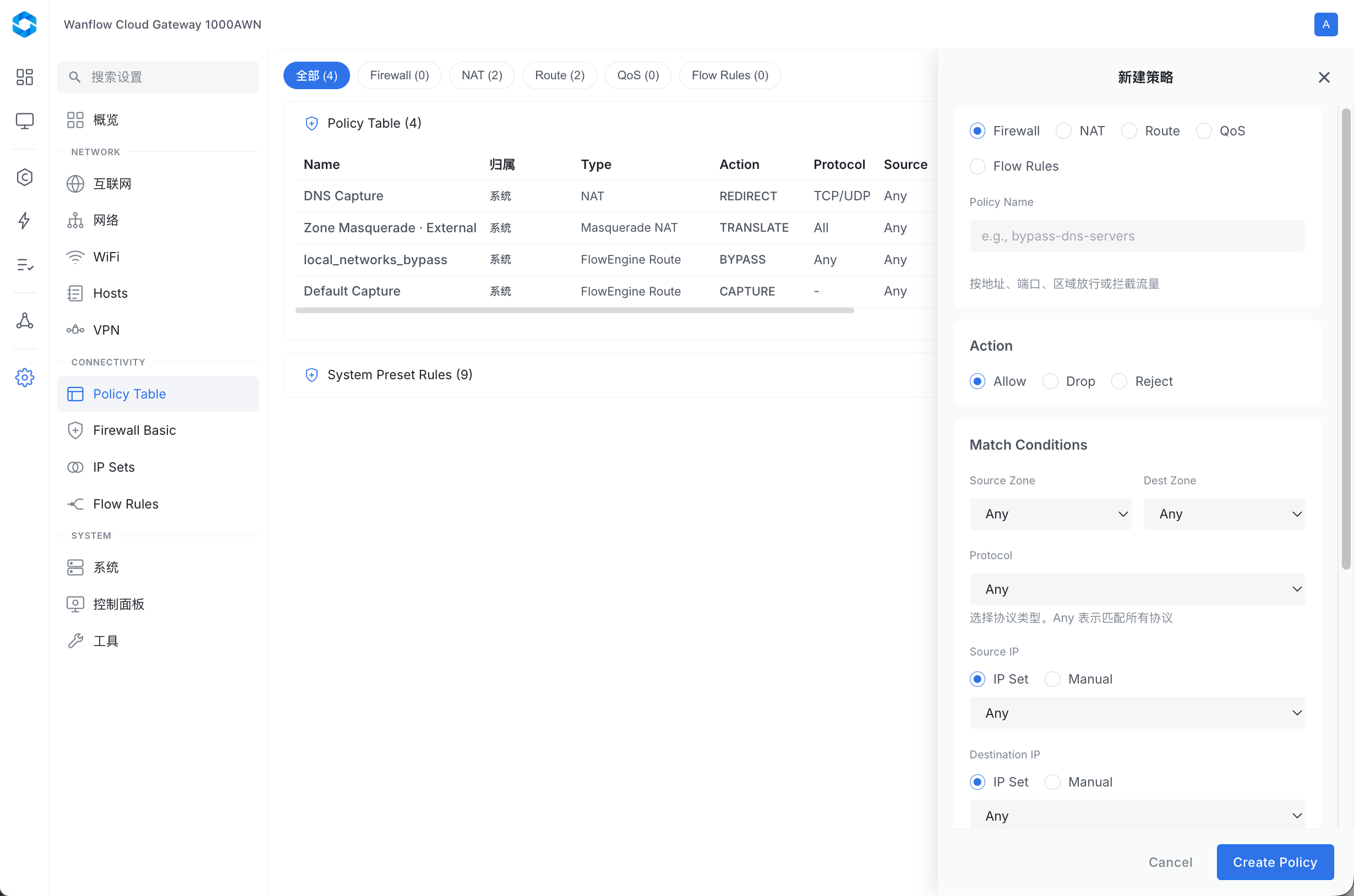
At the top of the page you can filter by type: 全部 (All), Firewall, NAT, Route, QoS and Flow Rules. The number in parentheses is the count of policies of that type. The table lists each policy’s name, owner, type, action, protocol, source and destination, port, interface, priority and description. Policies owned by 系统 (System) are system preset rules; the remaining preset rules are listed under System Preset Rules below.
2. Create a firewall policy
Click 新建策略 (New policy) at the top right. In the panel on the right:
-
Set the policy type to Firewall and enter a policy name, for example
bypass-dns-servers. Firewall policies allow or block traffic by address, port and zone. -
Under Action, choose an action:
Action Description Allow Allow matching traffic Drop Silently discard matching traffic without responding to the sender Reject Refuse matching traffic and tell the sender the connection was refused -
Under Match Conditions, set the match conditions:
Condition Description Source Zone / Dest Zone The zone the traffic comes from and the zone it goes to Protocol Protocol type. Any matches all protocols Source IP / Destination IP Source and destination addresses. Choose IP Set to use a predefined address set, or Manual to enter addresses by hand Priority Priority, from 1 to 10000. Lower numbers have higher priority -
Optionally enter a description under Additional Info. Enable this policy turns the policy on and is selected by default. Click Create Policy to save.
When you choose another type such as NAT, Route or QoS, the panel shows the settings for that type.
Firewall policies directly affect connectivity for the device and connected devices. Before creating a Drop or Reject policy, make sure the match conditions cover only the traffic you want to block.