Install the Linux client
Linux servers connect to FlowMesh with the open-source FlowMesh client, which consists of the background service flowmeshd and the command-line tool flowmesh. Source code and documentation are on GitHub. This guide applies to x86_64 / aarch64 Linux; for routers, use the OpenWrt installation guide.
Before you begin
- Have root or sudo privileges and a working network connection.
- The mesh network must have a device license available. Linux servers use device licenses; see Create a mesh network.
There are two ways to connect: use the one-line command generated in the console (recommended), or install the client first and then connect with an auth key.
Option 1: Use the command generated in the console (recommended)
1. Generate the install command
Open https://console.wanflow.com/ and sign in to the Wanflow Console. In the left navigation, click 万联组网 (FlowMesh), open the target mesh network, click 添加终端 (Add terminal) in the upper right, and select Linux 服务器 (Linux server) in the dialog:
- 设备名称 (Device name): optional. Use a name that’s easy to recognize, for example
office-server. - 密钥有效期 (Key validity period): the key can be used while it’s valid.
- 部署方式 (Deployment mode): a 单台接入 (Single device) key can be used only once; generate a new one for the next device. A 批量部署 (Bulk deployment) key can be reused while it’s valid.
- 高级设置 (Advanced settings, optional): assign tags, ephemeral node (the device is removed from the mesh network automatically after it goes offline), use as an exit node.
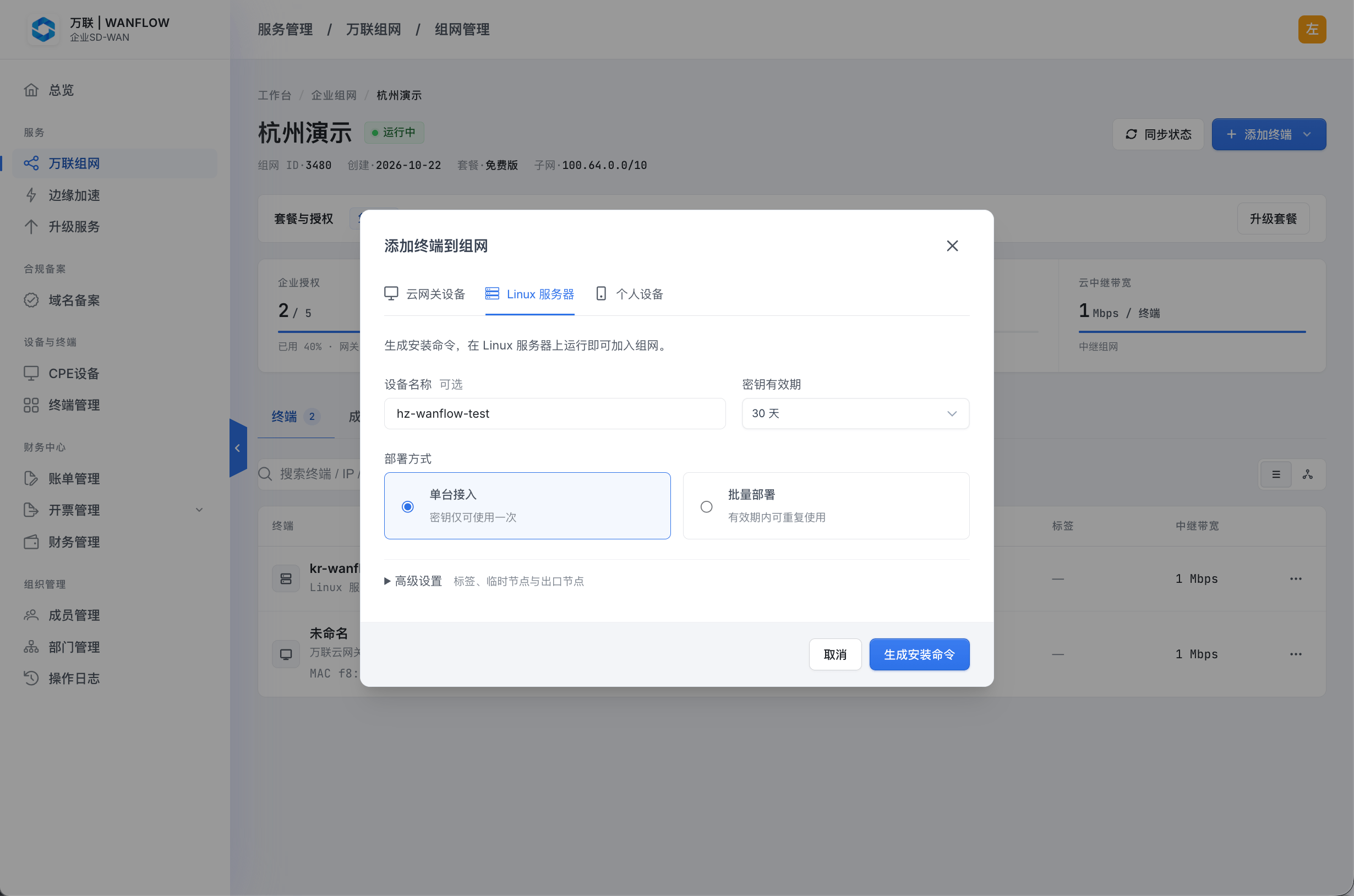
Click 生成安装命令 (Generate install command). The dialog shows the install command; click 复制命令 (Copy command). The command looks like this. The values in angle brackets are filled in automatically by the console; copy the complete command from the console rather than typing it by hand:
{ curl -fsSL 'https://dl.wanflow.com/flowmesh/latest/install.sh' || wget -qO- 'https://dl.wanflow.com/flowmesh/latest/install.sh'; } | sh -s -- \
  --login-server='<mesh address>' \
  --auth-key='<auth key>' \
  --hostname='<device name>' \
  --mirror='https://dl.wanflow.com/flowmesh'
The install command contains connection credentials. Don’t paste it into public discussions, and cover the auth key and mesh address before taking screenshots.
2. Run it on the server
Run the copied command on the Linux server. The script installs the client, starts the service and joins the mesh network with the given parameters; when run as a non-root user it uses sudo automatically. When it finishes, skip to Check that the service is running.
Option 2: Install first, then connect
1. Install the client
Run the install script from the official repository:
curl -fsSL https://github.com/wanflow-labs/flowmesh/releases/latest/download/install.sh | shThe script chooses deb, rpm or a static binary for your system, verifies the downloaded files, and starts a systemd or OpenRC service. If it needs elevated privileges, follow the script’s prompts.
2. Join the mesh network
Get the mesh address and an auth key:
- Mesh address: in the console, open the target mesh network and find 组网控制器 (Mesh controller) under 网络配置 (Network configuration) on the 设置 (Settings) tab. Keep the protocol and port exactly as shown when you enter it.
- Auth key: on the 密钥 (Keys) tab, click 生成密钥 (Generate key). See Manage auth keys.
The following connects using a key file so the key isn’t written directly into your command history. First save a valid key to /root/flowmesh.key, readable only by root, set its permissions to 0600, then run:
sudo flowmesh up \
  --login-server='full mesh address from the console' \
  --auth-key=file:/root/flowmesh.key \
  --hostname=office-server \
  --timeout=30s
Replace the mesh address in quotes with the actual value from the console; you can replace office-server with your device name. up exits successfully once it reaches Running; if it times out or registration is rejected, check the error message first.
After connecting successfully, you can delete the temporary key file. The node keeps connecting with the identity it has stored, so restarts don’t require the auth key again.
Check that the service is running
flowmesh status
flowmesh ip
flowmesh status lists one device in the mesh network per line, showing its mesh IP address, device name and operating system; flowmesh ip shows this device’s IPv4 and IPv6 mesh IP addresses. BackendState in flowmesh status --json should be Running. Example output:
$ flowmesh status
100.64.0.1  office-server  linux  -

$ flowmesh ip
100.64.0.1
fd7a:115c:a1e0::1
If system DNS is managed by another service, flowmesh status may also end with a # Health check: notice.
About 1 minute after joining, the device appears in the device list on the mesh network management page in the console.
On systems that use systemd, you can also check the service and logs:
sudo systemctl status flowmeshd
sudo journalctl -u flowmeshd -n 100 --no-pager
On OpenRC systems, use sudo rc-service flowmeshd status to check the service. The systemctl and journalctl commands above apply only to systemd.
Verify the connection
Replace the example address with the actual mesh IP address of the peer device:
flowmesh ping --until-direct=false -c 3 100.64.0.2When the response comes through a relay, the output looks like this:
pong from home-laptop (100.64.0.2) via DERP(<relay name>) in 248ms
pong from home-laptop (100.64.0.2) via DERP(<relay name>) in 4ms
pong from home-laptop (100.64.0.2) via DERP(<relay name>) in 4ms
Seeing pong from ... means the node path probe got a response. The “must establish a direct connection” requirement is turned off here, so a relayed response also counts as success; see Direct connections and relays. A successful path probe is not a substitute for testing the service port, so also access a service that’s actually running on the peer.
Change settings
After connecting, prefer set to change individual options, for example to accept subnet routes:
sudo flowmesh set --accept-routes=trueIf you run up again and there are already non-default settings, you must specify those settings as well; if any are missing, the command refuses and suggests a command to run. Don’t add --reset just to get past the prompt: it restores all unspecified settings to their defaults.
Update and uninstall
A Linux client installed with the install script can be updated by running the install command above again. To install a specific version, replace X.Y.Z with a version number that exists on the release page:
curl -fsSL https://github.com/wanflow-labs/flowmesh/releases/latest/download/install.sh | sh -s -- --version=X.Y.ZUninstall a client installed with the script:
curl -fsSL https://github.com/wanflow-labs/flowmesh/releases/latest/download/install.sh | sh -s -- --uninstallIf your goal is to remove the device from the mesh network, first run sudo flowmesh logout while the control server is reachable, then check the device status in the console. Uninstalling the software and revoking the device’s access are two separate things.
/var/lib/flowmesh/ stores the node identity and settings and must not be copied to another machine as ordinary configuration. Don’t send this directory to anyone when troubleshooting, either.
Next: Connect two devices.