Set up internet access
The device connects to an upstream network or ISP broadband through its WAN port. The WAN connection method is set on the 互联网 (Internet) page.
Before you start, sign in to the device as described in Sign in to the gateway admin console.
1. Open the WAN line
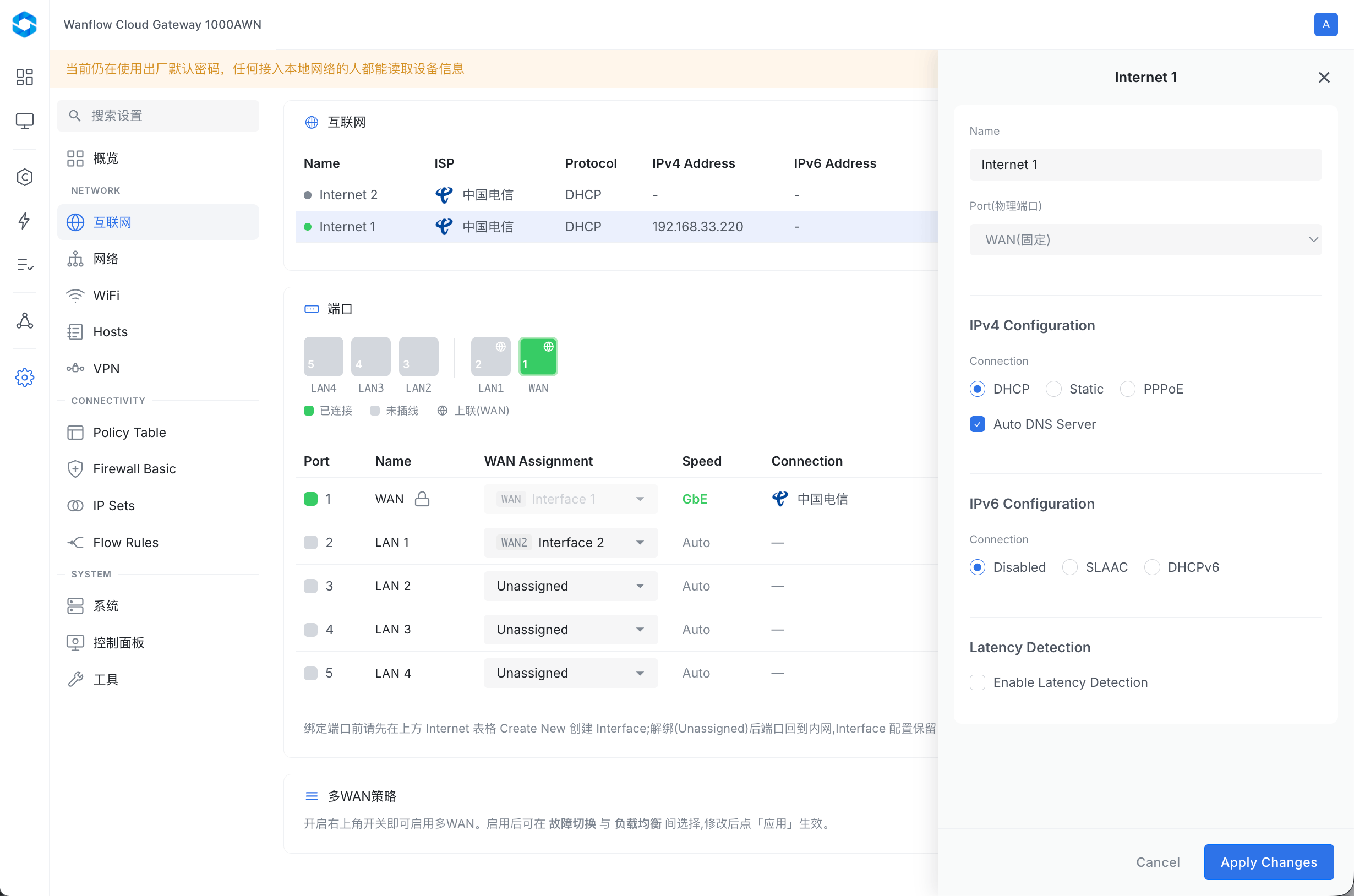
In the left navigation, select 设置 → 互联网 (Settings → Internet). The table at the top of the page lists the WAN lines. The default line is Internet 1, which corresponds to the physical WAN port. The table shows the ISP, connection method, IPv4 address and gateway.
Click Internet 1 to open the line settings panel on the right.
2. Choose a connection method
Under IPv4 Configuration, in Connection, choose based on your network environment:
| Option | When to use |
|---|---|
| DHCP | The upstream router or ONT assigns addresses automatically. Use this in most cases |
| Static | Your ISP or network administrator has provided a fixed IP address, gateway and DNS |
| PPPoE | Broadband dial-up, using the broadband account and password provided by your ISP |
With DHCP, you can select Auto DNS Server to obtain DNS automatically.
If you need IPv6, choose SLAAC or DHCPv6 under IPv6 Configuration. The default is Disabled.
To monitor this line’s quality, select Enable Latency Detection under Latency Detection to turn on line latency detection. See View device status.
3. Save the settings
Click Apply Changes at the bottom of the panel to apply the settings. Afterwards, the line in the table should show the IPv4 address and gateway it obtained.
To connect a second broadband line, see Multi-WAN.