Quickstart: connect two devices
When you finish this guide, you’ll have two devices in the same FlowMesh network and will have verified that they can reach each other.
- Computers and phones: connect by installing the Wanflow client app. See step 2.
- On-site networks: connect through a Wanflow Cloud Gateway. See step 3.
- Linux servers: see Install the Linux client.
Before you begin
- Have a Wanflow account and create or join an organization. If you haven’t yet, read Register and create an organization first.
- Have two devices to connect, for example a computer and a phone, or a computer and a Wanflow Cloud Gateway.
- Have an organization admin create the mesh network, or confirm that your account has access to an existing one.
1. Create a mesh network
Skip this step if you already have a mesh network.
Open https://console.wanflow.com/ and sign in to the Wanflow Console. In the left navigation, click 万联组网 (FlowMesh), then click 创建组网 (Create mesh network) in the upper right and choose a suitable plan.
On the 配置你的组网 (Configure your mesh network) page:
- 组网名称 (Mesh network name): required, 1–40 characters; can be changed after creation.
- 客户端授权 (Client licenses): for computers and phones that connect through the official apps (Windows / macOS / iOS / Android). Counted per device, not per person.
- 设备授权 (Device licenses): for other connection methods such as gateways, routers, servers and NAS. Each Wanflow Cloud Gateway uses one device license; computers, cameras and other devices behind the gateway don’t need their own licenses.
- 加购带宽 (Add-on bandwidth), 购买时长 (Subscription length): choose as needed.
The two license types must total at least 2 devices. Review 费用明细 (Cost details) on the right, then click 提交订单并支付 (Submit order and pay). The mesh network is activated automatically after payment.
2. Connect a computer or phone
-
Get the Wanflow client app for your device from the Download Center and install it:
Platform How to get it Windows Download the installer macOS Mac App Store; requires macOS 10.15 or later iOS App Store; requires iOS 13.0 or later Android Download the installer -
Open the client (the app is shown as 万联云网关 (Wanflow Cloud Gateway)) and sign in with an account that has access to the target mesh network.
-
On the home screen, under 连接服务 (Connection services), find 万联云组网 (FlowMesh), enable it, then tap 连接工作空间 (Connect workspace) at the top.
-
Allow the VPN or network extension permission when the system prompts you.
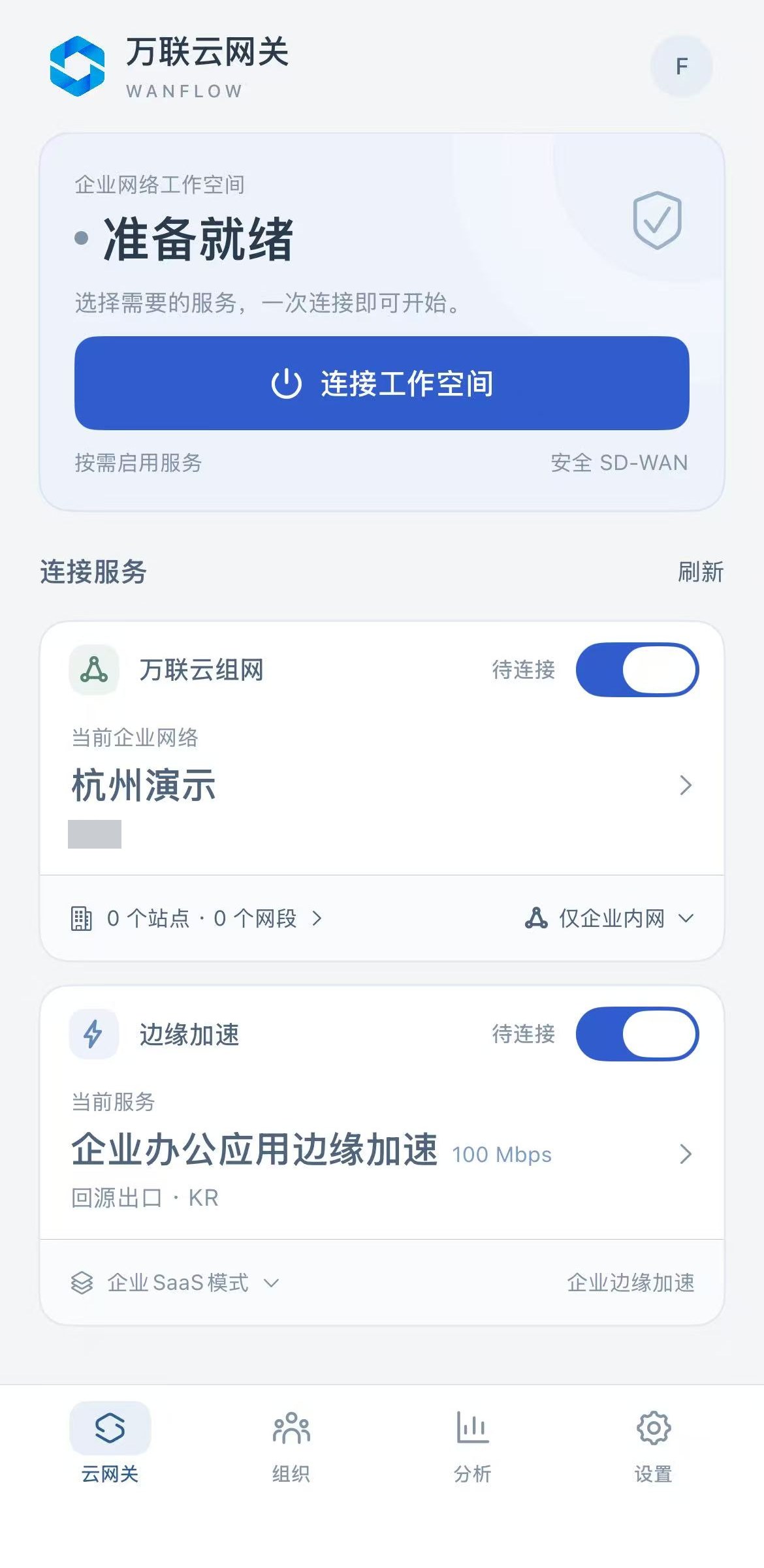
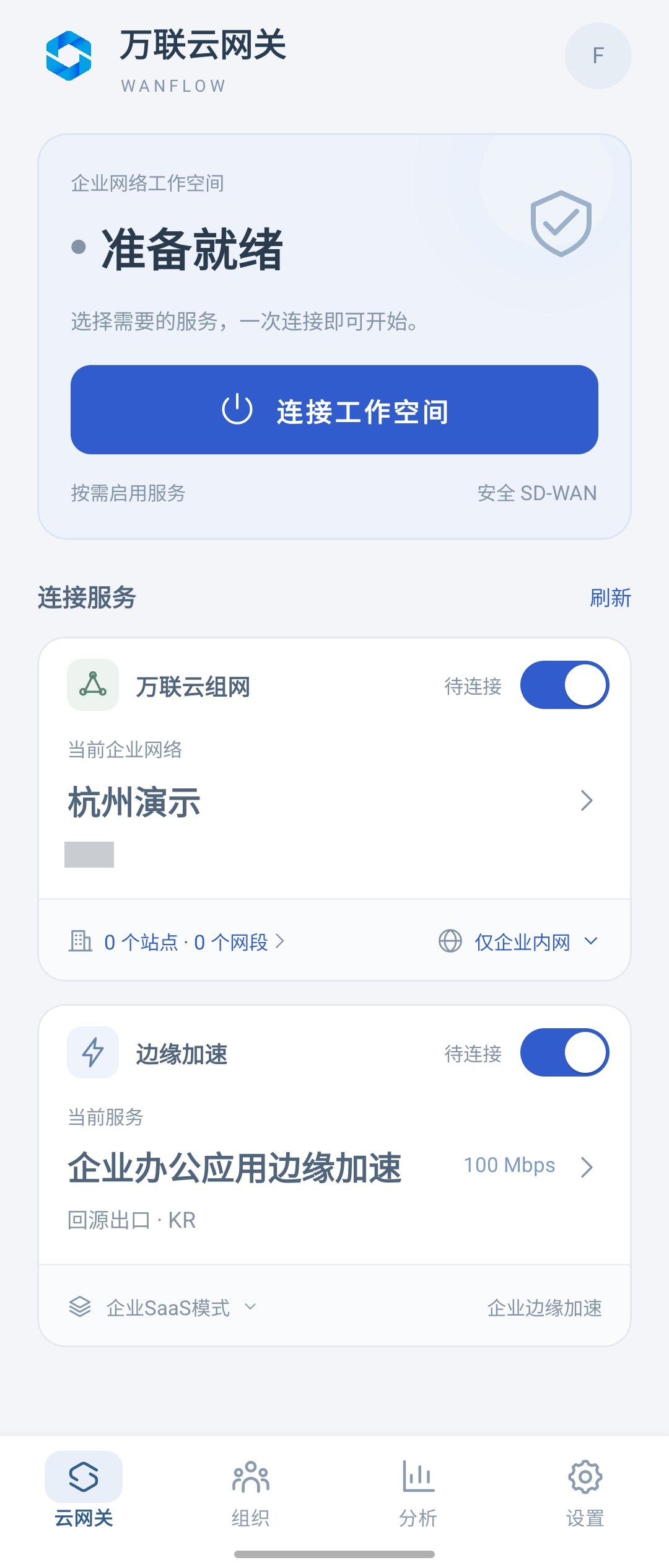
The mesh network card shows the enterprise network currently in use (the mesh network name). If the mesh network service shows 未开通 (Not activated), your account doesn’t have a mesh network available yet; contact your organization admin. If you can’t see the target mesh network, first check which organization your account belongs to and its mesh network permissions. Exact button names depend on the client version.
3. Connect a Wanflow Cloud Gateway
A Wanflow Cloud Gateway doesn’t need a client installed. Select the mesh network service in the gateway admin console and join. See Add a device to FlowMesh. The gateway must first be linked to an organization.
After the gateway joins, devices behind it that can’t run a client (such as NAS, printers and cameras) can be reached by other devices in the mesh network through subnet routes.
4. Confirm the devices are online
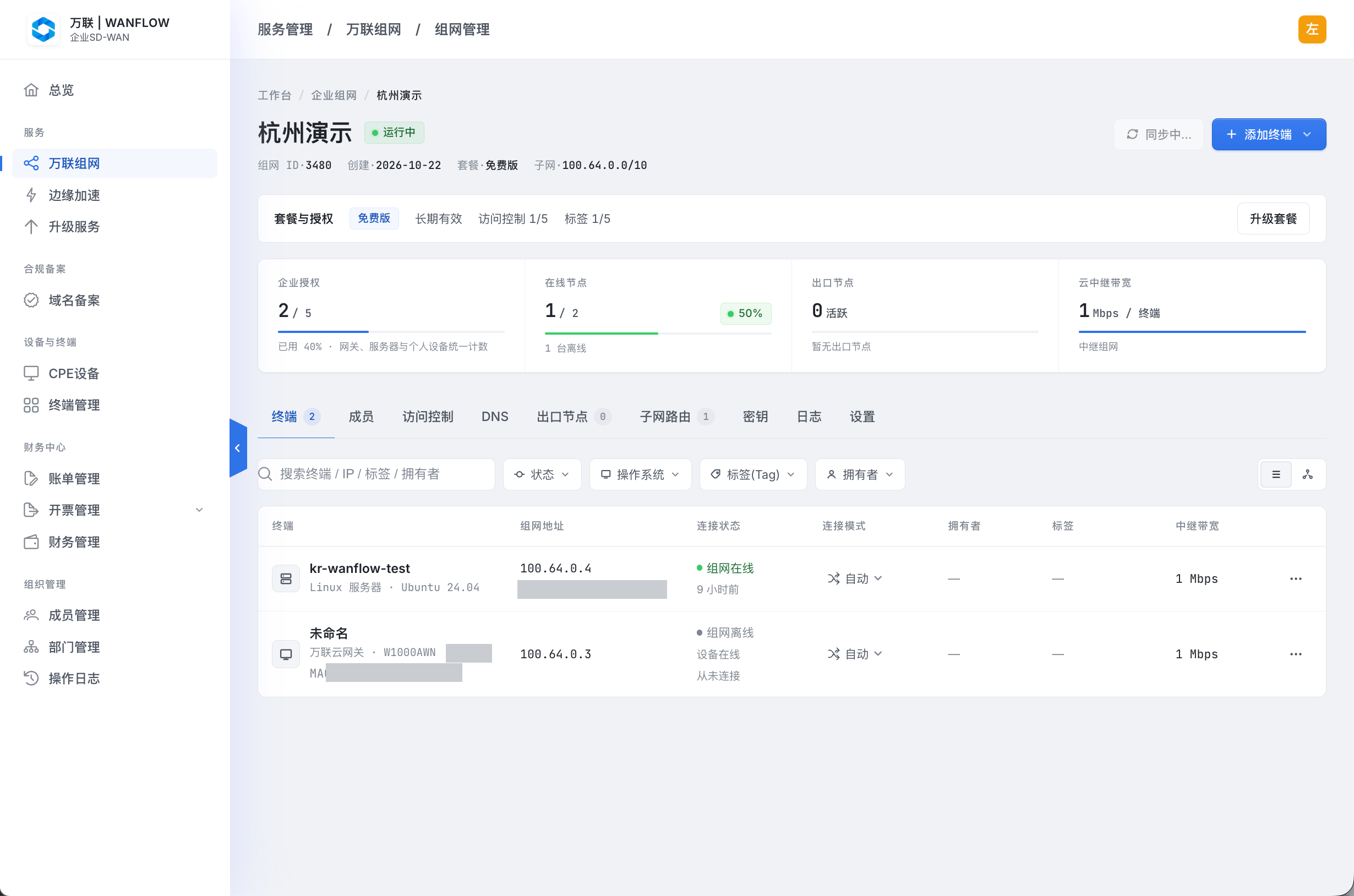
In the console’s left navigation, click 万联组网, open the target mesh network, and check the 终端 (Devices) list. A device appears in the list within about 1 minute after joining, with the connection status 组网在线 (Mesh online).
5. Verify access
From one device, access a service that is actually running and allowed on the other device, such as file sharing, remote desktop or a web service, using the other device’s mesh IP address or device name. A device showing as online is not a substitute for an actual access test.
On Linux devices you can also probe the path from the command line. See Install the Linux client.
If the connection doesn’t work
- The device doesn’t appear in the device list: confirm that the signed-in account belongs to the target organization, that you selected the target mesh network, and check whether the mesh network’s licenses have run out.
- The device is online, but access fails: confirm that the access control rules allow these two devices to communicate (see Access and access control), then check that the target service is running and the local firewall allows it.
If the problem persists, work through Troubleshooting step by step. Don’t enable subnet routes or exit nodes yet.
Next steps
- Reach other devices in the office: Subnet routes.
- Connect using device names: DNS and device names.
- Set which devices can reach each other: Access and access control.