Multi-WAN
Once a second broadband line is connected, you can enable a multi-WAN policy: automatically switch to the backup line when the primary line fails, or have multiple lines share traffic at the same time.
Before you start, sign in to the device as described in Sign in to the gateway admin console, and complete internet setup for the first line.
1. Create a second line
In the left navigation, select 设置 → 互联网 (Settings → Internet), then click Create New at the top right of the WAN line table.
In the Create Interface panel, enter a line name, for example Internet 2, choose the connection method that fits the second broadband line (DHCP, Static or PPPoE), and click Create.
2. Assign a port
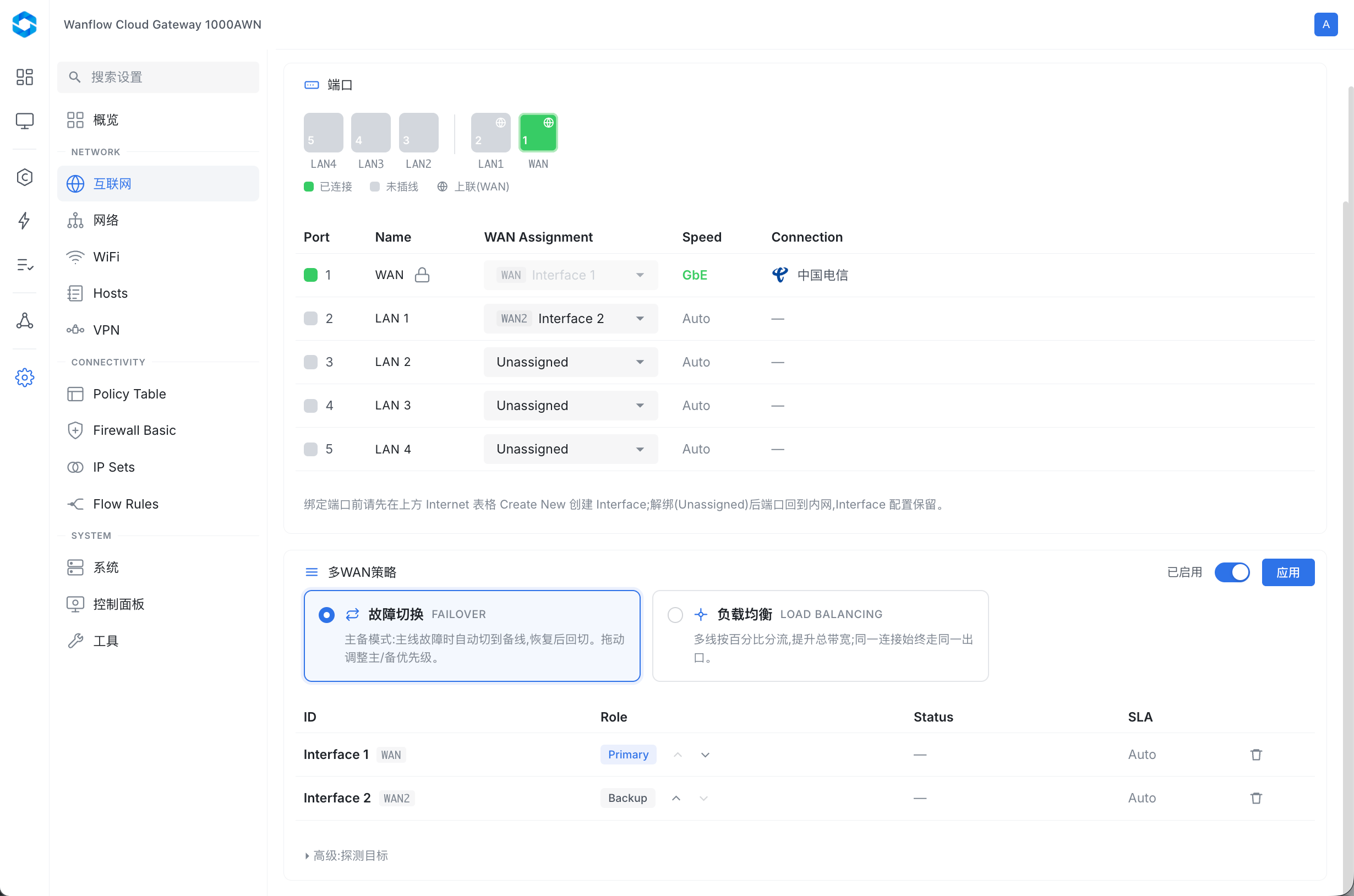
The new line needs to be bound to a physical port. In the 端口 (Ports) table, pick an unused LAN port and change its WAN Assignment from Unassigned to the line you just created, for example Interface 2.
The confirmation dialog explains that once bound, the port carries this line’s uplink traffic. Click 应用 (Apply).
After you apply, a 90-second confirmation countdown protects you: if the change makes the device unreachable, the previous configuration is restored automatically when the time runs out.
To unbind, change the port back to Unassigned. The port returns to the LAN and the line configuration is kept.
3. Enable a multi-WAN policy
In 多WAN策略 (Multi-WAN policy) at the bottom of the page, turn on the switch at the top right and choose a policy:
| Policy | Behavior |
|---|---|
| 故障切换 (Failover) | Primary/backup mode: when the primary line fails, traffic switches to the backup line automatically and switches back once it recovers |
| 负载均衡 (Load balancing) | Traffic is split across lines by percentage to increase total bandwidth; a given connection always uses the same exit |
With failover, the Role column in the list shows whether each line is Primary or Backup. Drag lines to change their primary/backup priority.
After making changes, click 应用 to apply them.