Sign in to the gateway admin console
All Wanflow Cloud Gateway settings are configured in the gateway admin console, which you can open directly from the Wanflow Console.
1. Find the device in the console
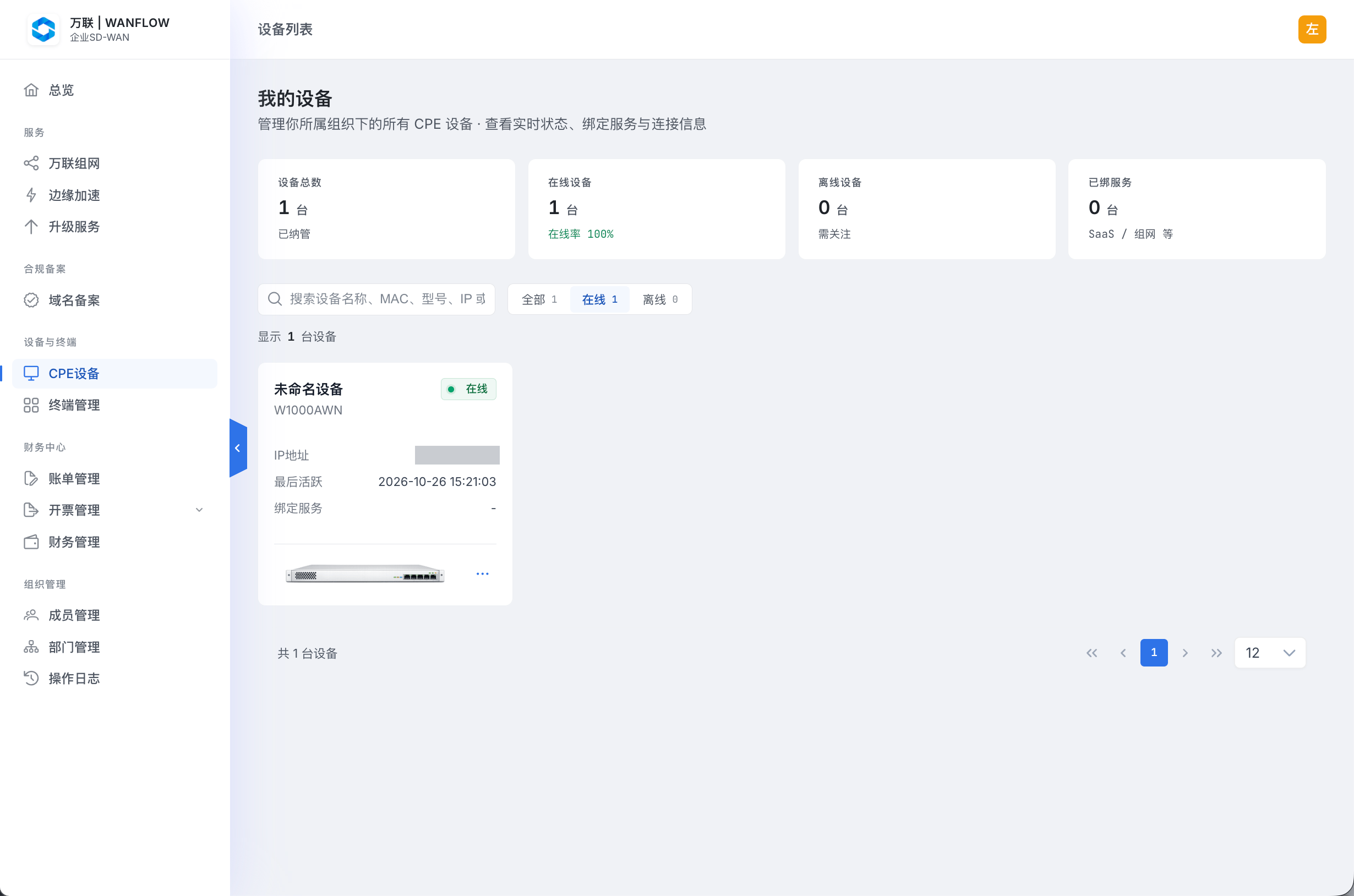
Go to https://console.wanflow.com/ and sign in to the Wanflow Console. In the left navigation, select 设备与终端 → CPE设备 (Devices & Terminals → CPE devices) to open the 我的设备 (My devices) list. The list shows each device’s name, model, online status, IP address and last active time.
Click the device image below the card of the device you want to configure. Your browser opens that device’s admin console.
2. Sign in
On the sign-in page, enter the device password and click 登录 (Sign in). The factory default password is wanflow.com.
While the factory default password is still in use, the top of the admin console shows the warning 当前仍在使用出厂默认密码,任何接入本地网络的人都能读取设备信息 (You are still using the factory default password; anyone on the local network can read device information). Click 立即修改 (Change now) to the right of the warning to change the password.
3. Get to know the layout
After you sign in, you land on the dashboard, where you can view the device status. See View device status.
The icon navigation bar on the far left takes you to pages such as the dashboard, FlowEngine, 应用加速 (App acceleration), 终端审计 (Device audit), FlowMesh and 设置 (Settings). Internet, LAN, WiFi, firewall and other settings are under 设置.
Open it on the local network
The gateway admin console also supports local management: once your computer is connected to the gateway’s LAN by cable or WiFi, open the gateway’s LAN address in a browser to reach the same admin console. You sign in the same way.
The gateway’s factory default LAN address is 192.168.77.1, so go to http://192.168.77.1. If the LAN address has been changed, use the new address. You can view and change the LAN address in 设置 → 网络 (Settings → Network). See LAN and address assignment.